우리가 어떤 웹사이트에 접속하기 위해서는 웹 호스팅 서비스가 필요하다. Github Pages는 Github에서 제공하는 무료 정적 웹사이트 호스팅 서비스로,
개인 레포지토리가 정적 파일로만 구성되어있다면, 사이트를 배포하기에 적합하다.
범용성 높은 GitHub Pages 어떤 저장소든 정적 웹사이트로 호스팅할 수 있으며, GitHub Actions를 결합하면 코드 푸시만으로 배포가 자동화가 가능하다.
그래서 이번 글에서는 이러한 자동 배포 파이프라인을 단계별로 구축해보았다.
설계
나는 document 폴더에 있는 작성 md 파일들을 github pages를 이용하여 하나의 게시글로 정리하는 작업을 하고자 다음과 같은 프로세스를 설계했다.
┌─────────────────────────────────────┐
│  1. MD 파일 업데이트                   │
│     (.md 확장자 파일 수정)              │
└─────────────────────────────────────┘
                 ↓
┌─────────────────────────────────────┐
│  2. 별도 빌드 실행                     │
│     (MD 정보 → JSON 파일 생성)         │
└─────────────────────────────────────┘
                 ↓
┌─────────────────────────────────────┐
│  3. 전체 빌드                         │
│     - JSON 파일 참조                  │
│     - Markdown 라이브러리로 로드        │
│     - innerHTML로 HTML 변환          │
└─────────────────────────────────────┘
즉, 도식화하면 위와 같다.
참고로 나는 js에 대한 지식이 많이 부족해서 Claude의 도움을 많이 받음ㅎ
사용한 기술 스택은 다음과 같다.
- Node.js v20.0 (딱히 상관없다. 잘 돌아가기만 하면 된다 )
- 배포 : Github Actions
- 호스팅 : GitHub Pages
구현하기
- 작성한 md 파일 메타데이터로 추출하는 스크립트 작성
우선은 블로그 같은 카테고리란을 만들기 위해서는 내 프로젝트에 있는 모든 Markdown 파일을 스캔하여 메타데이터로 추출하고, 이에 대하여 파일경로, 제목, 카테고리 정보 등을 추출하여 JSON으로 정리해줘야 한다.
그러기 위해서 별도의 스크립트를 작성하였다.
scripts/generate-docs.js
import fs from 'fs';
import path from 'path';
import { fileURLToPath } from 'url';

const __filename = fileURLToPath(import.meta.url);
const __dirname = path.dirname(__filename);

const DOCUMENT_DIR = path.join(__dirname, '../document');
const OUTPUT_FILE = process.argv[2] || path.join(__dirname, '../docs.json');

// 디렉토리를 재귀적으로 탐색하여 모든 .md 파일 찾기
function findMarkdownFiles(dir, baseDir = dir, category = '') {
  const results = [];

  if (!fs.existsSync(dir)) {
    console.warn(`Warning: Directory ${dir} does not exist`);
    return results;
  }

  const files = fs.readdirSync(dir);

  for (const file of files) {
    const filePath = path.join(dir, file);
    const stat = fs.statSync(filePath);

    if (stat.isDirectory()) {
      // 하위 디렉토리 탐색 (카테고리로 사용)
      const subCategory = category || file;
      results.push(...findMarkdownFiles(filePath, baseDir, subCategory));
    } else if (file.endsWith('.md')) {
      // .md 파일 발견
      const relativePath = path.relative(path.join(__dirname, '..'), filePath);
      const title = path.basename(file, '.md')
        .replace(/_/g, '/')  // 언더스코어를 슬래시로 변환 (B-Tree_B+Tree -> B-Tree/B+Tree)
        .replace(/-/g, ' ');  // 하이픈을 공백으로 변환

      results.push({
        category: category,
        title: title,
        path: relativePath.replace(/\\/g, '/')  // Windows 경로를 웹 경로로 변환
      });
    }
  }

  return results;
}

// 문서를 카테고리별로 그룹화
function groupByCategory(files) {
  const grouped = {};

  for (const file of files) {
    const category = file.category || 'Uncategorized';

    if (!grouped[category]) {
      grouped[category] = [];
    }

    grouped[category].push({
      title: file.title,
      path: file.path
    });
  }

  // 각 카테고리 내에서 제목으로 정렬
  for (const category in grouped) {
    grouped[category].sort((a, b) => a.title.localeCompare(b.title));
  }

  return grouped;
}

// 메인 실행 함수
function generateDocs() {
  console.log('🔍 Scanning for markdown files...');

  const markdownFiles = findMarkdownFiles(DOCUMENT_DIR);
  console.log(`✅ Found ${markdownFiles.length} markdown file(s)`);

  const groupedDocs = groupByCategory(markdownFiles);
  console.log(`📁 Organized into ${Object.keys(groupedDocs).length} categories`);

  // JSON 파일로 저장
  fs.writeFileSync(OUTPUT_FILE, JSON.stringify(groupedDocs, null, 2));
  console.log(`💾 Generated ${OUTPUT_FILE}`);

  // 결과 출력
  console.log('\n📚 Document structure:');
  for (const [category, docs] of Object.entries(groupedDocs)) {
    console.log(`  ${category}:`);
    docs.forEach(doc => {
      console.log(`    - ${doc.title}`);
    });
  }
}

// 스크립트 실행
try {
  generateDocs();
} catch (error) {
  console.error('❌ Error generating docs:', error);
  process.exit(1);
}
스크립트 실행 결과, 다음과 같은 json 파일이 생성된다.
{
  "network": [
    {
      "title": "UDP/TCP",
      "path": "document/network/UDP_TCP.md"
    }
  ],
  "operating-system": [
    {
      "title": "CPU/scheduling",
      "path": "document/operating-system/CPU_scheduling.md"
    },
    {
      "title": "PCB(Process/Control/Block)",
      "path": "document/operating-system/PCB(Process_Control_Block).md"
    }
  ]
}
나의 경우 CS에 대한 지식을 저장하는 폴더이었기에 document 패키지 안에 network와 operating-system이 존재했다. 그래서 위와 같은 json형식으로 메타데이터가 잘 생성됨을 확인할 수 있다.
- npm 스크립트 작성
이제 npm 스크립트를 설정해보자.
package.json에 빌드 관련 스크립트를 추가해야한다.
"scripts": {
    "generate-docs": "node scripts/generate-docs.js",
    "dev": "yarn generate-docs && vite",
    "build": "vite build && node scripts/generate-docs.js dist/docs.json",
    "preview": "vite preview"
}- yarn generate-docs : 메타 데이터 JSON 파일을 생성해준다(위에서 보여준 거)
- yarn dev : 개발 서버 실행(메타데이터 자동으로 생성해줌)
- yarn build : 프로덕션 빌드(메타데이터 생성 + Vite 빌드)
-Vite 설정하기
Vite 빌드를 위하여 Vite에 대한 설정으로 넘어가보자.
vite.config.js
import { defineConfig } from 'vite';
import { resolve } from 'path';
import { copyFileSync } from 'fs';

export default defineConfig({
  base: process.env.NODE_ENV === 'production'
    ? '/{레포지토리 이름 넣기}/'
    : '/',

  build: {
    outDir: 'dist',
    assetsDir: 'assets',
    rollupOptions: {
      input: {
        main: resolve(__dirname, 'index.html')
      },
      output: {
        entryFileNames: '[name].js',
        assetFileNames: '[name].[ext]',
        chunkFileNames: '[name].js',
      }
    }
  },

  server: {
    port: 3000,
    host: true,
    open: false
  },

  plugins: [
    {
      name: 'copy-docs',
      closeBundle() {
        try {
          copyFileSync('docs.json', 'dist/docs.json');
          console.log('✅ docs.json copied to dist/');
        } catch (err) {
          console.warn('⚠️ docs.json not found, skipping copy');
        }
      }
    }
  ]
});- base : GitHub Pages에서 레포지토리 이름이 경로에 포함되므로 레포지토리 이름을 BASE url로 설정해주면 된다. 이 때, 만약에 프로덕션이 아니라면 /로 설정을 해두었는데, 이는 http://localhost:3000/으로 개발용 서버에서는 이러한 주소로 빌드되는 것이고, production 모드에서는 https://{유저이름 혹은 조직이름}.github.io.{레포지토리 이름}/ 으로 BASE가 설정되는 것을 알 수 있다.
- outDir : 빌드 결과물을 넣을 공간을 지정해준다. 위의 설정에 따르면 build 결과물은 모두 dist 폴더에 생성된다
- copy-docs 플러그인 : 빌드 완료 후에 docs.json을 dist 폴더에 복사한다.

카테고리를 만들면 위와 같이 만들어지고, docs.json의 메타데이터를 이용한 것이다.
빌드 결과물의 구조는 그럼 다음과 같다.
document
├── network/
└── operating-system/
dist/
├── index.html
├── main.js
├── main.css
├── docs.json
└── assets/
    └── (기타 정적 파일)
일반적인 yarn build를 입력하면 다음 main.js에 대하여 빌드 결과물이 생성이 된다.
그리고 index.html은 알아서 작성해주었다.
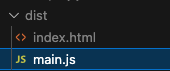
이런식으로 생성이 된다.
이제 기본적인 세팅은 끝났다. 사실 markdown을 읽는 외부 라이브러리를 사용만 하면 그렇게 크게 어렵지는 않다.
이제 Github pages를 이용하여 웹호스팅을 사용해보자.
배포하기
우리가 로컬에서 yarn dev를 실행하면 http://localhost:3000 에서 실행된다. 그렇다면 GitHub Pages에 배포했을 때에는 어떻게 동작할까? http://localhost:3000의 환경이 https://{유저이름 혹은 조직이름}.github.io.{레포지토리 이름}/ 으로 바뀌는 것이다.
우선은 GitHub Pages 설정을 위하여 깃허브 페이지에 대한 허가를 해야한다.
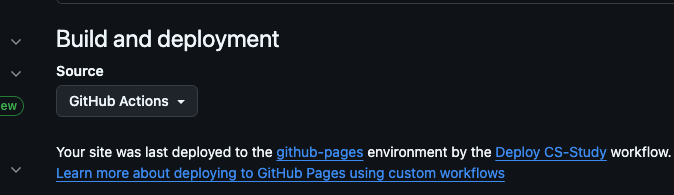
Setting에 들어가서 Github Pages로 들어간다. 그리고 사진과 같이 허용을 해줘야한다.
나같은 경우에는 Github Actions를 이용하여 배포를 해줄 것이기 때문에 Source에서 GitHub Actions로 설정해주었다.(다른 선택권에는 Deploy from branch로도 가능하다)
GitHub Actions Workflow 작성하기
.github/workflows/deploy.yaml
name: Deploy CS-Study

on:
  push:
    branches:
      - main
  workflow_dispatch:

concurrency:
  group: "pages"
  cancel-in-progress: false

permissions:
  contents: read
  pages: write
  id-token: write

jobs:
  build:
    runs-on: ubuntu-22.04

    steps:
      - name: Checkout
        uses: actions/checkout@v4

      - name: Setup Node.js
        uses: actions/setup-node@v4
        with:
          node-version: "20"
          cache: "yarn"

      - name: Install dependencies
        run: yarn install --frozen-lockfile

      - name: Generate Docs
        run: yarn generate-docs

      - name: Build
        run: yarn build
        env:
          NODE_ENV: production

      - name: Copy document folder to dist
        run: cp -r document dist/

      - name: Check build output
        run: |
          echo "Checking dist folder contents:"
          ls -la dist/
          echo "Checking index.html for base path:"
          grep -n "cs-study" dist/index.html || echo "Base path not found in index.html!"

      - name: Setup Pages
        uses: actions/configure-pages@v4
        with:
          enablement: true

      - name: Upload artifact
        uses: actions/upload-pages-artifact@v3
        with:
          path: "./dist"

  deploy:
    environment:
      name: github-pages
      url: ${{ steps.deployment.outputs.page_url }}
    runs-on: ubuntu-22.04
    needs: build

    steps:
      - name: Deploy to GitHub Pages
        id: deployment
        uses: actions/deploy-pages@v4
- 환경 설정
- name: Setup Node.js
  uses: actions/setup-node@v4
  with:
    node-version: "20"
    cache: "yarn"
로컬과 비슷하게 설정해주면 된다.
- 빌드 프로세스
- name: Install dependencies
  run: yarn install --frozen-lockfile

- name: Generate Docs
  run: yarn generate-docs

- name: Build
  run: yarn build
  env:
    NODE_ENV: production
우선은 의존성을 설치한다. --frozen-lockfile으로 일관된 버전을 보장해준다.
그리고 generate-docs를 통하여 기존의 문서 메타데이터를 생성해준다
또한 NODE_ENV로 production을 설정해야 base url이 설정한대로 잘 생성된다.
- document 파일 복사
- name: Copy document folder to dist
        run: cp -r document dist/
아까 말했듯이 우리의 md 파일은 document라는 폴더에 존재한다.
하지만 빌드를하면, dist 폴더에서 전반적인 index.html과 main.js가 생성되고, 이를 기반으로 작업을 해야하기 때문에 dist 폴더 안으로 MD가 들어있는 document를 복사해주었다. 그래야 런타임에 파일을 정상적으로 참조할 수 있다.
그러면 배포 후의 디렉토리 구조는 다음과 같다.
dist/
├── index.html
├── main.js
├── docs.json
└── document/          ← 복사된 폴더
    ├── network/
    └── operating-system/
- 아티팩트 업로드
- name: Setup Pages
  uses: actions/configure-pages@v4
  with:
    enablement: true

- name: Upload artifact
  uses: actions/upload-pages-artifact@v3
  with:
    path: "./dist"
path: "./dist"로 설정하여 dist 폴더의 내용만 GitHub Pages에 업로드한다.
- 배포
deploy:
  environment:
    name: github-pages
    url: ${{ steps.deployment.outputs.page_url }}
  runs-on: ubuntu-22.04
  needs: build

  steps:
    - name: Deploy to GitHub Pages
      id: deployment
      uses: actions/deploy-pages@v4
빌드 작업이 완료된 후에 deploy 작업을 실행한다.
이러면 Gtihub Pages에 맞는 url로 배포가 된다.

Actions를 보면 최종적으로 GitHub Pages가 나온다.
url 구조 이해하기
이렇게하면 성공적으로 빌드 된 것을 확인 할 수 있다.
요청에 대한 Request url을 확인해보면 다음과 같다.
로컬 개발 환경
http://localhost:3000/document/operating-system/CPU_scheduling.md
GitHub Pages 프로덕션 환경
https://{유저이름 혹은 조직이름}.github.io/{레포지토리 이름}/document/operating-system/CPU_scheduling.md
localhost:3000 → {유저이름 혹은 조직이름}.github.io/{레포지토리 이름}
이렇게 base path가 바뀐 것이다.
그리고 정적 파일을 로컬에서 작업할 때 경로 참조와, 호스팅에서 배포할 때의 참조가 다소 다를 수 있기에 빌드했을 때의 url 구조를 이해 잘 해두는 게 중요하다. (환경변수를 분리해서 작업하는 것을 추천한다.)